Windows / Mac
How to Install IPTV Smarters pro on Windows?
Step 1:
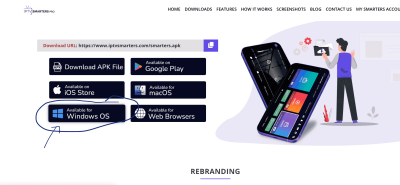
Go to the search engine and type in “IPTV Smarters Pro“.
Step 2:
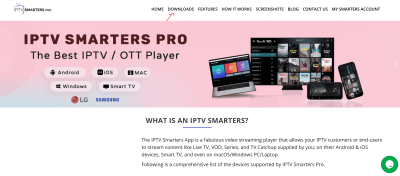
Then open the website https://www.iptvsmarters.com
Step 3:
Select Downloads in the Menu
Step 4:
Download the new version of IPTV Smarters Pro.
Step 5:
After the file download is complete, click on the executable file
Step 6:
Windows will ask you for permission to open this file. Select “Yes”
Step 7:
The file will now begin the installation process. This should take between – and two minutes
Step 8:
Once the installation is complete, start the IPTV Smarters program. Click Add New User and select Login with Xtream Codes API, Add your login data (username, password and Portal URL) for your IPTV service.
Step 9:
You are now ready to start watching content on IPTV Smarters Pro!
2nd Application : My IPTV Player
This is an exceptional media player with EPG to play your IPTV channels on your Windows Phone, Windwos10, and Xbox One. You can simply load your M3U playlist from storage or remote source and you are good to go.
You can download this app via the link below:
https://www.microsoft.com/
Step 1:
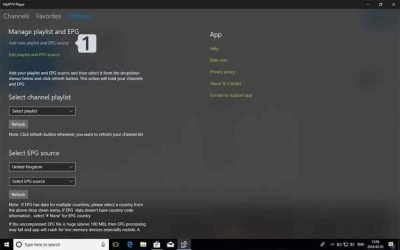
Navigate Settings
Go to the Settings tab and open Add new playlist and EPG source
Step 2:
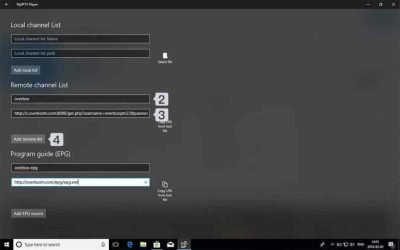
Enter M3u Link
Type a name (ex:overbox) in the Remote channel list name field.
Enter (paste) M3u link provided by IPTV provider in Enter remote source URL
Press Add remote list
Step 3:
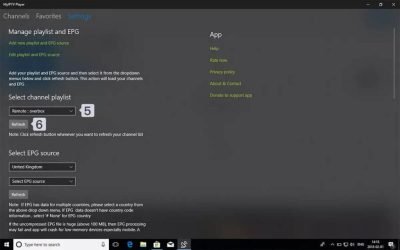
Select list to load
Back to Settings and select overbox in Select Channel playlist
Step 4:
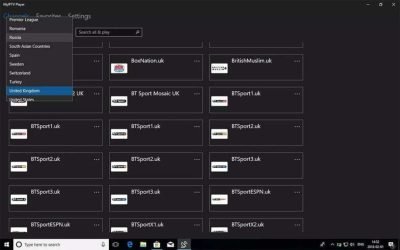
Watch Channels and VOD Done, Back to Channels tab now and select your country you want to watch TV channels.
MAG Device IPTV Setup Tutorial
his tutorial will guide you through a simple and effective steps of installation your Mag (250/254/256…).
Step 1:
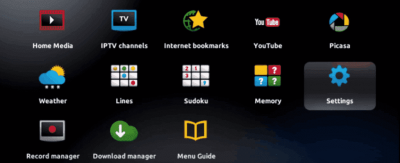
When the box is being loaded the main portal screen appears. After that click on “settings”, and press the remote button “SETUP/SET”.
Step 2:
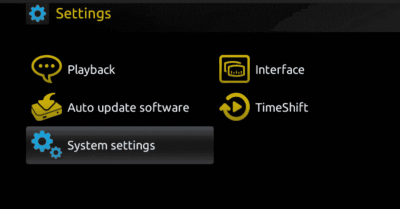
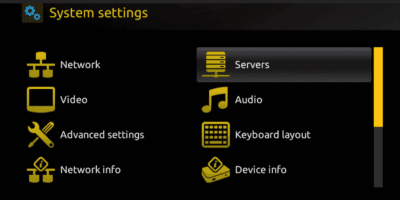
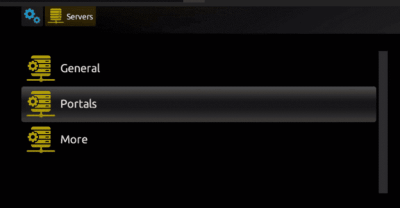
Then press on “System settings” and click on “Servers”.
Step 3:
Click on ‘Servers’
Step 4:
Choose and Press option ‘Portals’
Step 5:
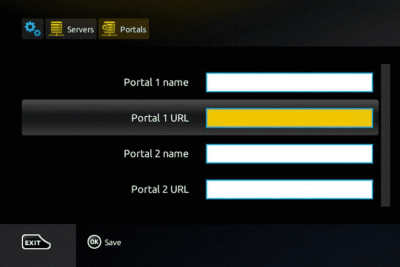
In the ‘Portal 1 name’ line enter a portal name and in the ‘Portal 1 URL’ enter portal URL.
Therefore for the activation of our IPTV subscription on your MAG box, you must send us with your order the MAC address found on the label behind the box, the activation is done entirely remotely, just after activation, we will send you a URL link that you have to put on your PORTAL, as in the photo below:
Step 6:
Finally when you complete select and click ‘OK’ to save the changes.
Step 7:
Click ‘EXIT’ on the remote control after the settings are being saved.
Step 8:
Consequently you have to reboot the box. Choose the option ‘OK’ to make the changes applied.